Step 1
1. Go to https://outlook.cloud.microsoft/franky.com.my
2. Select "Can't access your account?"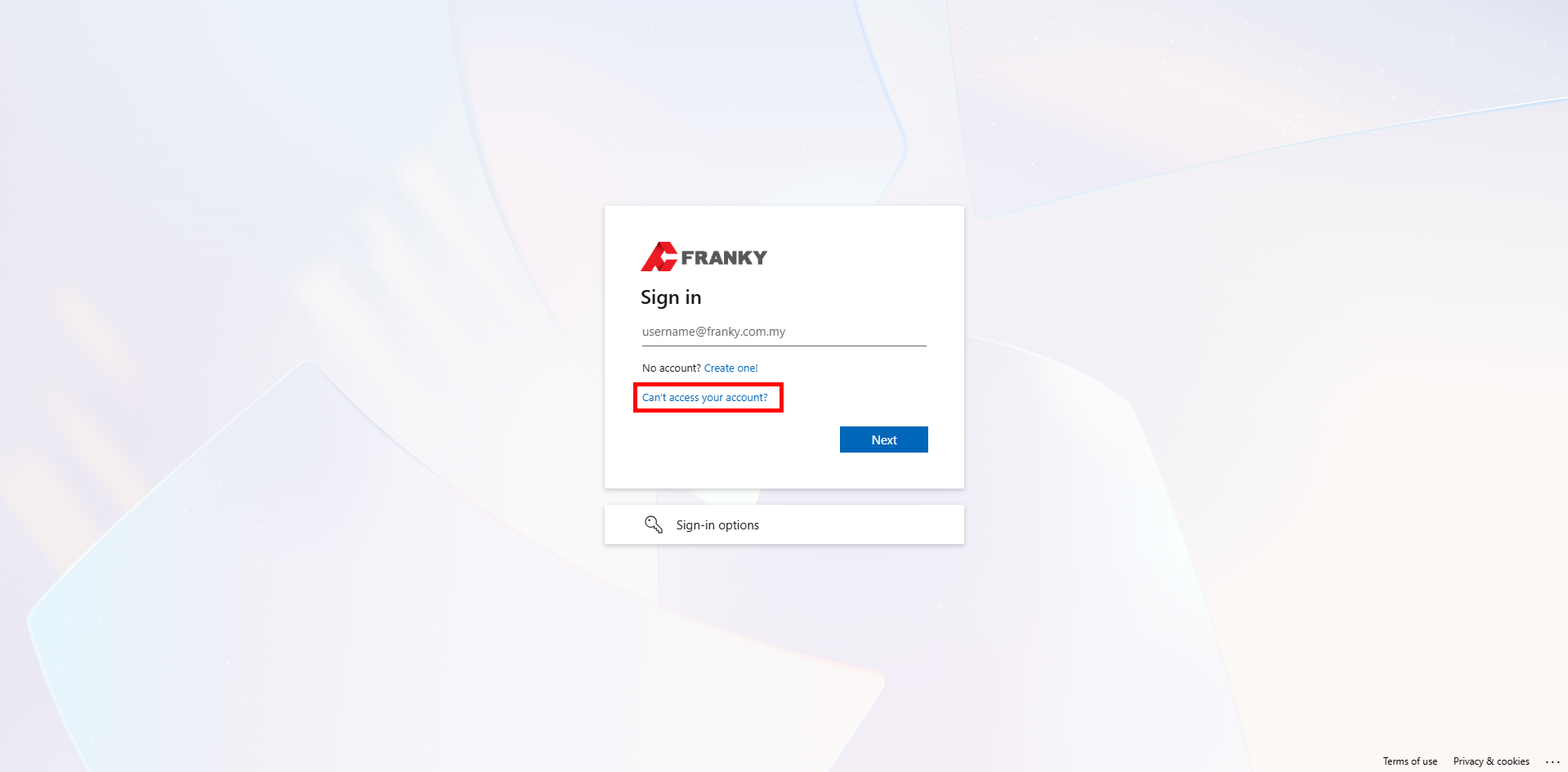
Step 2
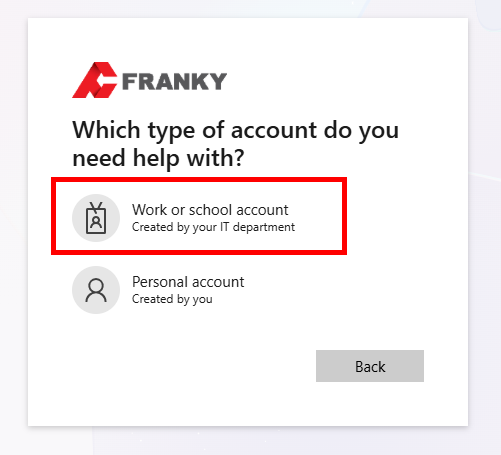
1. Select "Work or school account/Created by your IT department"
Step 3
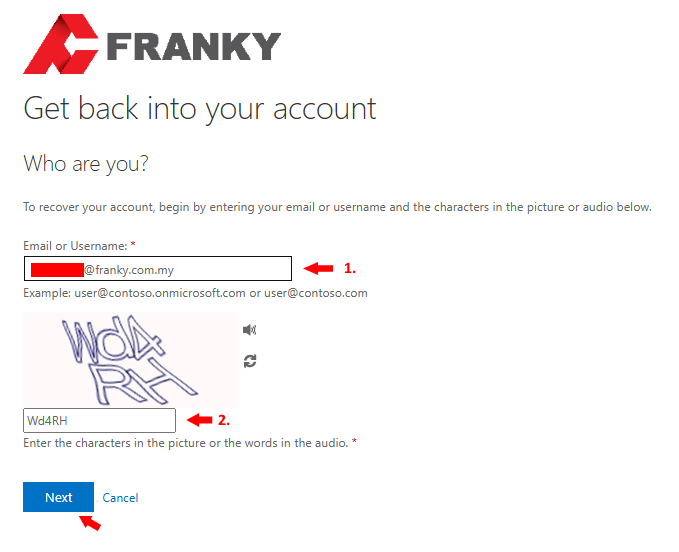
1. Type in your email address
2. Complete the CAPTCHA
3. Click “Next”
Step 4
A total of four options are available. Please select the one you are able to perform.
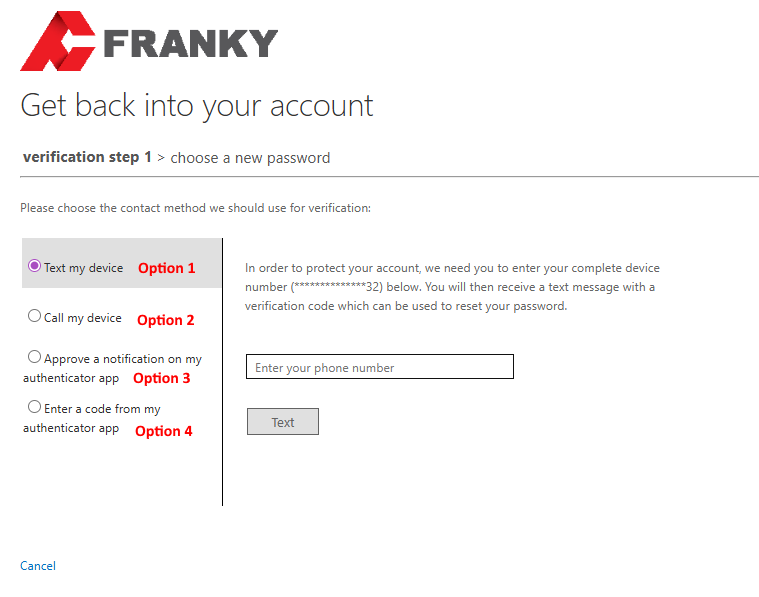
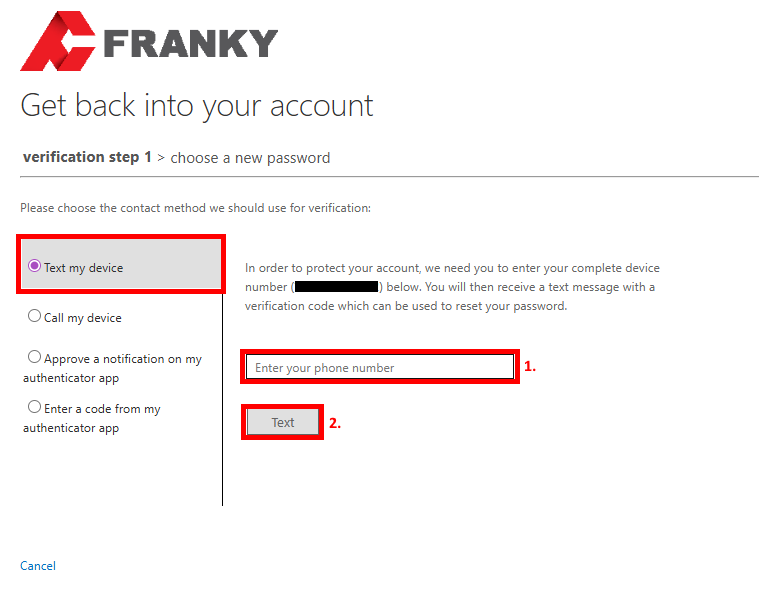
Option 1 - Text my device
1. Enter your phone number
2. Click on "Text"
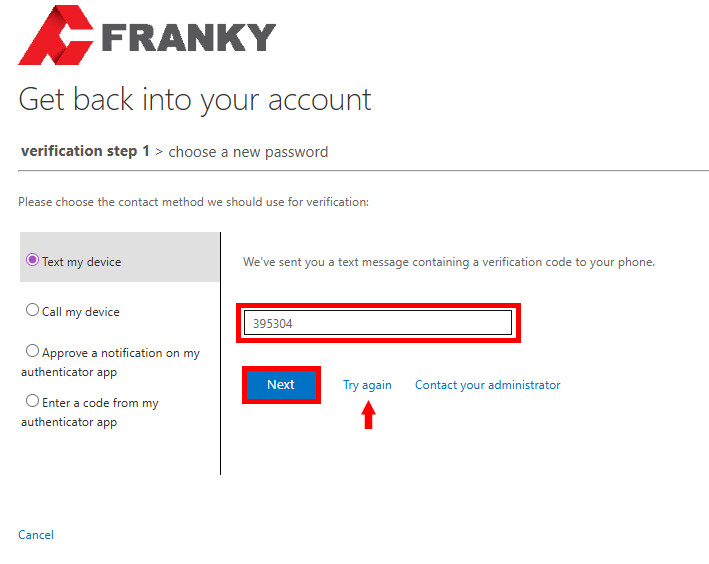
3. Enter the 6-digit code sent by Microsoft
Note: If you did not receive the code, please select “Try again.”
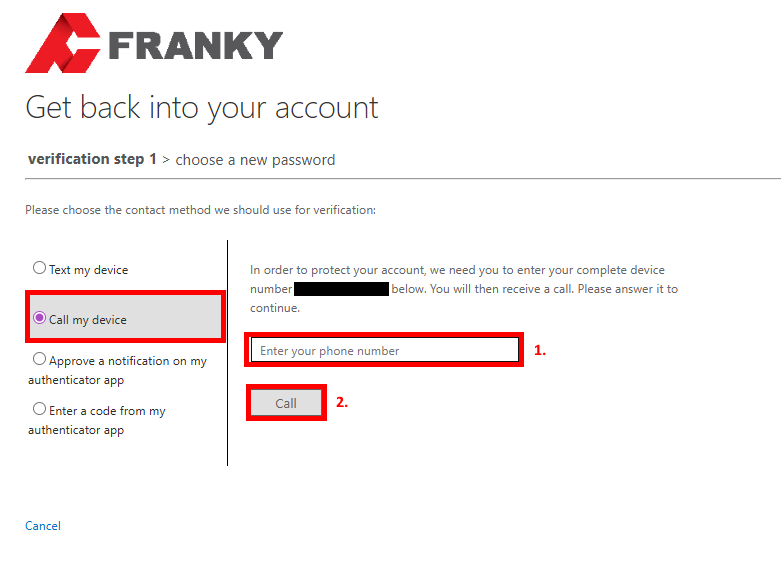
Option 2 - Call my device
1. Enter your phone number
2. Click the “Call” button
You’ll receive a call with a message like: “This is Microsoft. To sign in, press the # key.”
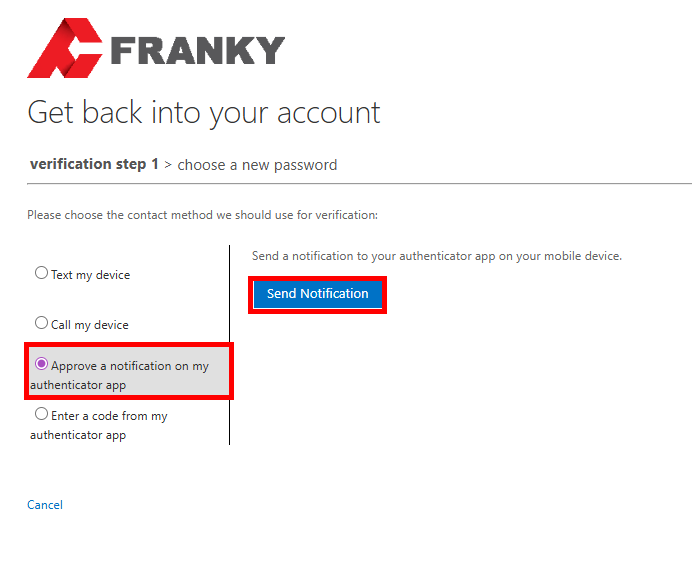
Option 3 - Approve a notification on my authenticator app
Select this option only if Microsoft Authenticator has been previously configured.
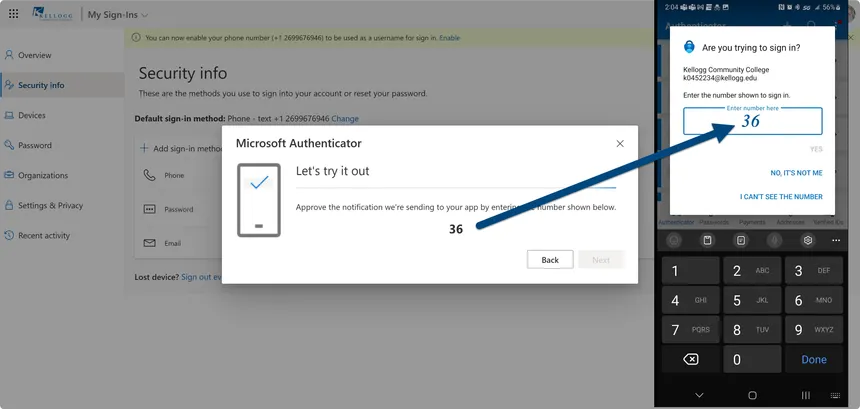
1. Select “Send Notification”
2. Enter the number shown in the Authenticator app
Example:
Option 4 - Enter a code from my authenticator app
Select this option only if Microsoft Authenticator has been previously configured.
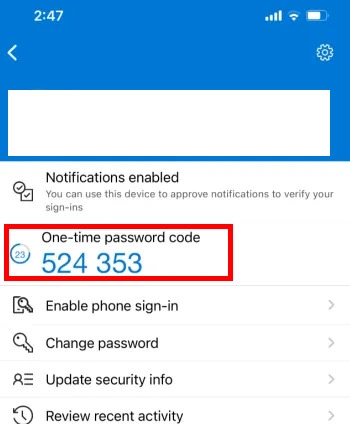
1. Enter the one-time password (OTP) from the Authenticator app
2. Click on "Next"
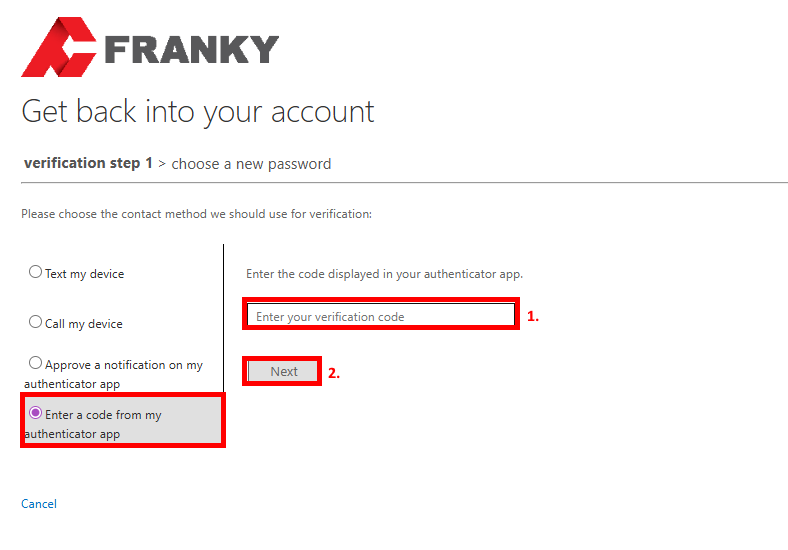
Example:
Step 5
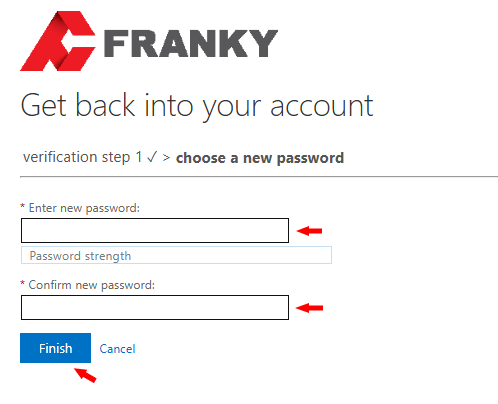
Enter your new password in both fields, then click “Finish”
Step 6
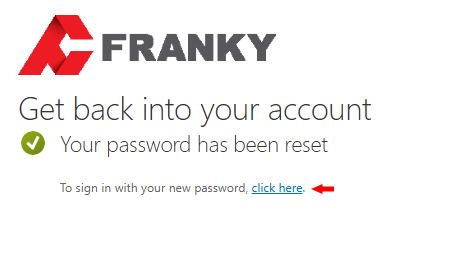
A success message will appear. Click the “Click here” link to sign in.
Optional
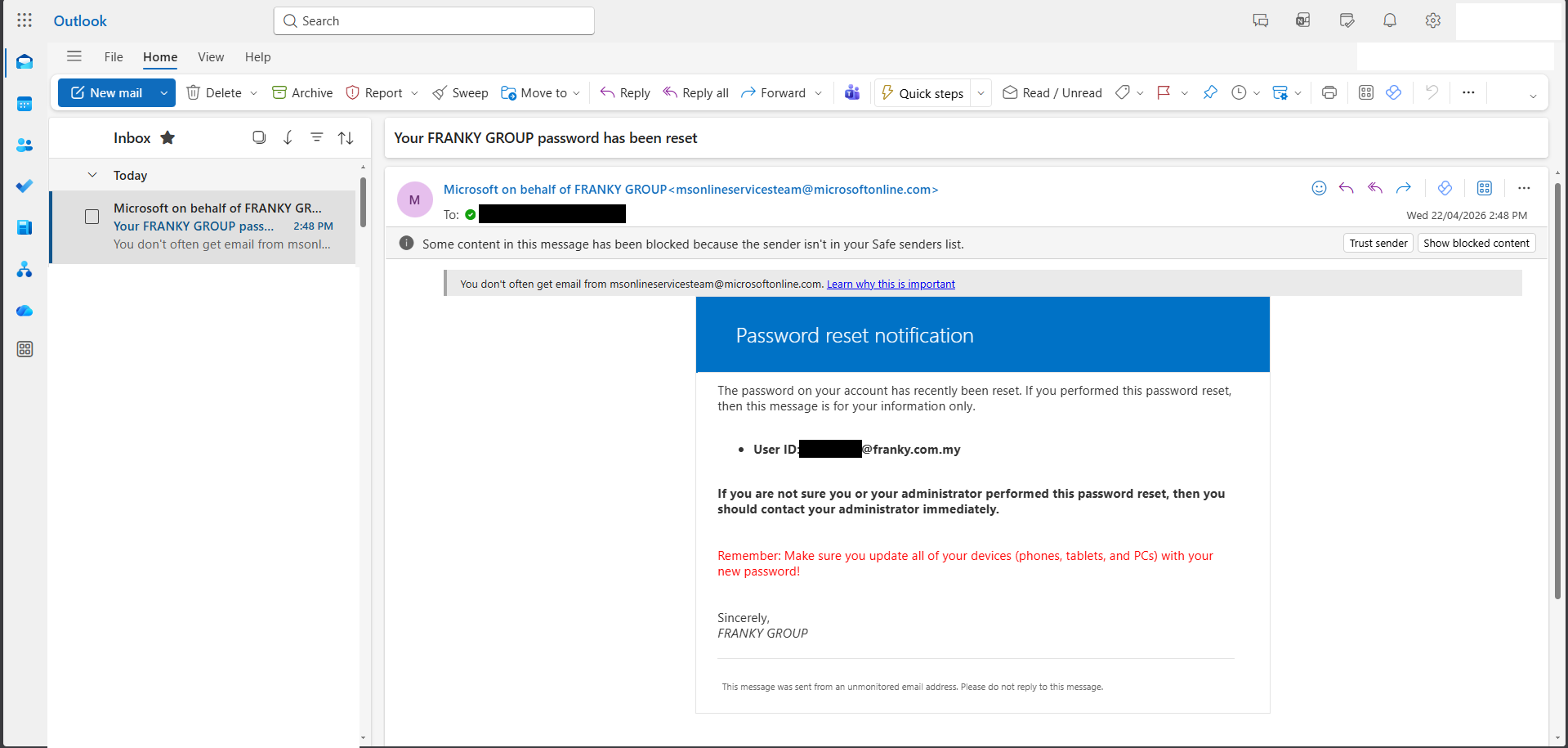
After signing in, you should receive an email about the password reset.
Was this article helpful?
That’s Great!
Thank you for your feedback
Sorry! We couldn't be helpful
Thank you for your feedback
Feedback sent
We appreciate your effort and will try to fix the article